




I installed EasyClean - File Cleaner expecting a straightforward way to deal with a crowded phone, and that is mostly what I found: a free productivity app from Delta Tools Dev that brings file cleanup, network scanning, and privacy-focused tools into one place. It is aimed at people who want a quick maintenance routine rather than a complicated file-management system. My experience was best when I treated it as a guided checkpoint before a specific task, such as clearing space before recording video or checking an unfamiliar network.
The app has a 3.8 average from around 3.7 thousand ratings and has passed the one-million-install mark, so it is not an obscure experiment. It is also rated for Everyone, which makes the interface approachable for a broad audience. EasyClean was released on June 20, 2025, and version 1.0.38 is available for devices running Android 7.0 or later. Those details matter because this is clearly positioned as a current, accessible utility rather than a specialist tool for advanced Android users.
From a crowded phone to a cleaner routine
Starting with the real problem
The most useful way to approach EasyClean is to begin with a concrete problem. “My phone feels messy” is too vague; “I need room for a long recording” or “I want to inspect the network before working” gives the app a clear job. The cleaner becomes more useful when I decide what can safely be reviewed instead of tapping every possible action without checking the results.
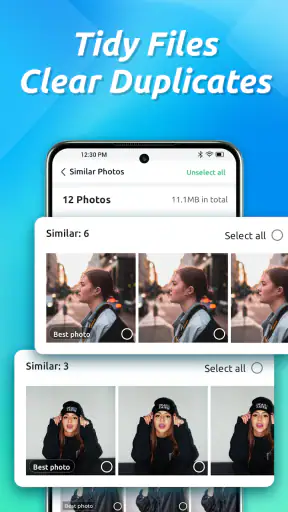
On a typical Android phone, unwanted material can be spread across downloads, temporary files, old installers, duplicate-looking images, and application leftovers. A file-cleaning app can make that landscape easier to inspect, but it cannot know the personal value of every item. A screenshot may look disposable while still containing information I need. For that reason, I use EasyClean as a sorting assistant, not as an automatic substitute for judgment.
The store summary presents three connected purposes: cleaning junk files, scanning networks, and protecting privacy. I like that combination because it reflects how people actually maintain a phone. Storage is one concern, but a quick network check and a privacy-oriented review can be part of the same “before I start” routine. The trade-off is that these are different jobs, so the app feels more like a compact toolbox than a single deeply specialized cleaner.
The first pass: scan, inspect, then decide
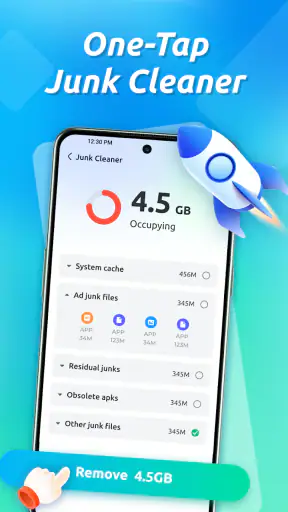
My first recommendation is to start with the cleanup area and let the app organize what it finds before taking action. The important handoff happens between detection and deletion: EasyClean can point me toward material worth reviewing, but I remain responsible for deciding what leaves the device. That extra pause is not wasted time. It is the difference between recovering useful space and creating a new problem.
I would work through the results in groups rather than treating the entire list as one large “clean” button. Temporary material is easier to evaluate than personal media, while downloads may contain documents that are still needed. If the app presents categories or review screens during the scan, I would open the less obvious groups first and check filenames and locations. This workflow is slower than blind cleanup, but it is safer and gives me a better understanding of why storage is disappearing.
A practical tip is to perform the scan before a handoff to another app. For example, if I am about to send a large batch of photos, I first review unnecessary files, then return to the gallery or messaging app and check the available space there. This separates the cleanup result from the next task. It also prevents me from assuming that every item EasyClean identifies is related to the storage pressure I am experiencing.
A realistic everyday scenario
Imagine I am leaving for a weekend trip and want to record clips offline. My starting condition is a nearly full phone and a downloads folder I have not reviewed recently. I open EasyClean, run the cleanup check, and inspect the suggested items. I remove only files I recognize as disposable, then check whether the phone now has enough room for the trip. If the result is still insufficient, I move to the gallery or the system storage settings rather than repeatedly scanning the same material.
That sequence shows the app’s strongest everyday role: it shortens the path from “something is wrong with my storage” to “I can see which areas deserve attention.” It does not remove the need for a backup or a personal review. Before deleting photographs, recordings, documents, or messages, I would preserve anything important elsewhere. A cleaner should be the last step in a decision, not the first step in a panic.
Using the network scanner as a separate checkpoint
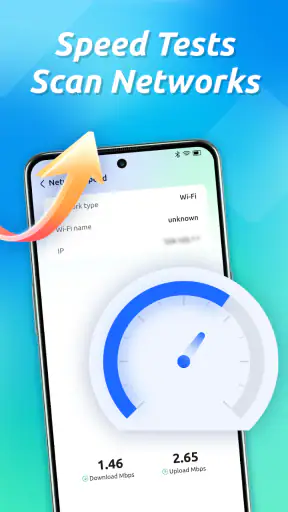
The network-scanning feature changes the workflow from storage maintenance to connection awareness. I would use it when joining a shared network, troubleshooting an unreliable connection, or checking what the phone can see on the current network. The useful handoff here is from EasyClean’s scan to my own interpretation: a scan can provide visibility, but it does not automatically tell me whether a device is trustworthy or whether a network is safe for sensitive activity.
For a simple check, I would run the scan after connecting and note the devices or network details the app exposes. If something looks unfamiliar, I would compare it with the router’s device list or ask the network owner before drawing conclusions. This is a non-obvious but important limitation of any network utility: discovery is not identification. A television, printer, extender, or guest device can appear unfamiliar even when it is legitimate.
I would also avoid treating the scanner as a replacement for secure habits. I would still use encrypted connections for important accounts, avoid entering sensitive information on networks I do not trust, and keep the phone’s normal security settings active. EasyClean is more valuable here as a quick observation tool than as a complete network-security solution. That distinction keeps expectations realistic and makes the feature easier to use responsibly.
Where privacy fits into the routine
The privacy-oriented part of the app makes sense as a final checkpoint after cleaning and network inspection. I think of it as a prompt to review the phone’s exposure and habits, not as proof that every privacy concern has been solved. When an app combines several maintenance functions, users can easily assume that one scan covers everything. I would instead handle privacy as a separate decision: what information is visible, which connections I trust, and which apps or files deserve closer attention.
This separation is especially helpful for families. Someone can use the cleaner to review disposable files, then ask an adult or more technically confident person to help interpret a network result. The Everyone age rating supports an approachable audience, but an accessible interface does not eliminate the need for explanation when the app surfaces unfamiliar technical information.
I also prefer to run privacy-related checks at meaningful moments rather than constantly. A new network, a borrowed device, or a change in how I use the phone is a better trigger than repeatedly scanning without a question in mind. That keeps EasyClean from becoming a source of unnecessary alerts and turns it into a practical maintenance habit.
Handoffs between EasyClean and Android
EasyClean works best when I know where its responsibility ends. The app can help me find material to review, but Android’s own storage controls may be better for seeing which applications consume the most space. The gallery is still the right place to judge personal photos and videos. A file manager may be preferable when I need exact folder control. In other words, EasyClean can start the investigation, while the operating system and dedicated apps complete it.
This matters because a single-button cleaner is appealing when I am in a hurry, but convenience can hide context. A system screen may show an application’s storage breakdown more clearly, while a gallery can reveal whether a video is a treasured memory or an accidental duplicate. I would use EasyClean for the broad first pass and switch tools when the decision becomes personal or technical.
The same principle applies to network checks. EasyClean may help me notice what is present, but router settings and Android connection details are the places I would go for deeper confirmation. That handoff is not a failure; it is a sensible division of labor. The app’s value comes from putting several first steps close together, not from replacing every built-in utility.
What the result feels like
The outcome I get from EasyClean is mainly clarity and a more manageable maintenance process. After reviewing the cleanup suggestions, I have a better idea of which files are safe candidates for removal. After a network scan, I have a snapshot that can guide a follow-up check. After the privacy pass, I have a reason to reconsider how I use the phone. Those results are useful even when the app does not solve the entire issue by itself.
I would not judge the cleaner only by how much storage it appears to recover. A smaller but carefully verified cleanup is better than a dramatic result that removes something important. The app is most convincing when it helps me make a confident decision quickly. It is less convincing if I expect it to transform a poorly organized phone into a perfectly managed one without any manual work.
For a person who regularly downloads documents, records media, or moves between home, work, and public networks, the combined workflow is more useful than a basic cache cleaner. I can begin with storage, switch to connection awareness, and finish with a privacy check. That sequence gives the app a clear place in a weekly or occasional phone-maintenance routine without requiring me to keep several unrelated utilities in mind.
Where the flow breaks down
The biggest friction is the unavoidable need to verify what is being removed. Anyone looking for a completely automatic cleanup may find the review step tedious, especially when the phone contains many personal files. That is not a flaw unique to EasyClean, but it limits the promise of speed. The safer I want the process to be, the more attention I need to give it.
The app can also feel broad rather than deep. A dedicated file manager may offer more precise control over folders and naming, while Android’s built-in tools may provide a more authoritative view of application storage. A specialist network utility may be better for detailed diagnostics. EasyClean is the better choice when I value a single starting point, not when I already know that I need advanced control in one narrow area.
Another point of friction is interpretation. Seeing an unfamiliar file or network device does not automatically mean it is junk or dangerous. The app can support awareness, but the user still has to understand context. I would be cautious about recommending it to someone who tends to approve every result without reading it, because the convenience of a cleaner can encourage exactly that habit.
There is also a practical reason to keep backups outside the cleanup workflow. If the phone is the only place where important photos or documents exist, I would not begin deleting until those items are preserved. EasyClean may make the review easier, but it cannot replace a backup strategy. This is where another option, such as a trusted cloud backup or a computer-based file review, is better suited to the job.
Who should use it and who should skip it
I think EasyClean is a good fit for Android users who want a free, approachable maintenance app and prefer to begin with one screen instead of searching through several system menus. It is particularly suitable for people who need occasional cleanup, want a quick look at their current network, and appreciate a privacy-related checkpoint in the same utility.
It is less suitable for power users who already rely on a detailed file manager, system storage tools, and a dedicated network analyzer. Those users may find the combined approach less precise than their existing setup. I would also steer away from it for anyone expecting a cleaner to diagnose every performance problem. Slowdowns can come from battery age, demanding applications, connectivity, or operating-system issues that file cleanup alone will not address.
The app’s free price makes trying that workflow easy, and its support for Android 7.0 or later covers a wide range of devices. Still, compatibility does not guarantee that every phone will present storage and network information in exactly the same way. Android manufacturers often organize settings differently, so I would keep the system tools nearby when a result needs confirmation.
My recommendation after using the complete workflow
EasyClean - File Cleaner earns its place as a practical first-stop utility rather than an all-purpose authority. I like the way it connects file review, network scanning, and privacy awareness, especially when I use those functions around a real task instead of opening them at random. The developer, Delta Tools Dev, has packaged a useful set of starting points for everyday Android maintenance.
My advice is to use it deliberately: define the problem, scan, inspect, hand off detailed decisions to Android or a dedicated app, and then check whether the original problem is actually solved. That approach avoids the most common mistake with cleaners, which is confusing a list of detected items with a list of safe deletions. It also makes the network and privacy tools more meaningful because they become part of a clear routine.
With a 3.8 average and a growing audience of over one million installs, it is reasonable to see why the app appeals to people who want several maintenance tools together. I would recommend it to a friend who wants a simple, free way to review phone clutter and perform occasional connection checks, provided that friend is willing to read before removing anything. Its real strength is guided awareness, not blind automation.
In the end, I see EasyClean as a useful bridge between feeling that a phone is untidy and knowing where to begin fixing it. It saves me from opening several tools for the initial inspection, while still leaving room for Android’s own controls and more specialized alternatives when the situation demands them. If that balanced workflow matches what you need, it is worth trying; if you want deep file control or professional network diagnostics, I would choose a more focused tool instead.


